
1. Before You Begin
You'll need:
- An iPhone or iPad running iOS 17 or later.
- An iCloud account, signed in on the device — the app uses iCloud to keep your pivot list in sync across your devices and to receive any pivots your dealer has shared with you.
- A pivot that's already been set up by your dealer. First-time pivot configuration (lat/lon, inches at 100 %, pressure scaling, barriers, etc.) is dealer territory.
If any of those are missing, hand the phone to your dealer first.
2. A Tour of the App
The app has five tabs along the bottom of the screen:
| Tab | What it's for |
|---|---|
| Map | See every pivot on a satellite map, refreshed automatically. |
| Control | Start, stop, set depth, change direction — the day job. |
| Settings | Adjust operator-facing preferences. |
| Dealer | First-time setup. Don't open this unless your dealer asks. |
| Pivots | Add, select, connect, edit, and manage your pivots. |
You'll spend most of your time on Map and Control.
Server (watcher) mode: if you turn this device into a watcher (Pivots tab → gear → Server), the app hides the normal tab interface and runs as a dedicated monitor that pushes alerts when a pivot alarms. See Section 10.
3. The Map — See All Your Pivots
The Map tab shows every pivot you own or that's been shared with you, plotted on a satellite view of the world. It's the fastest way to glance at "what is each of my pivots doing right now."
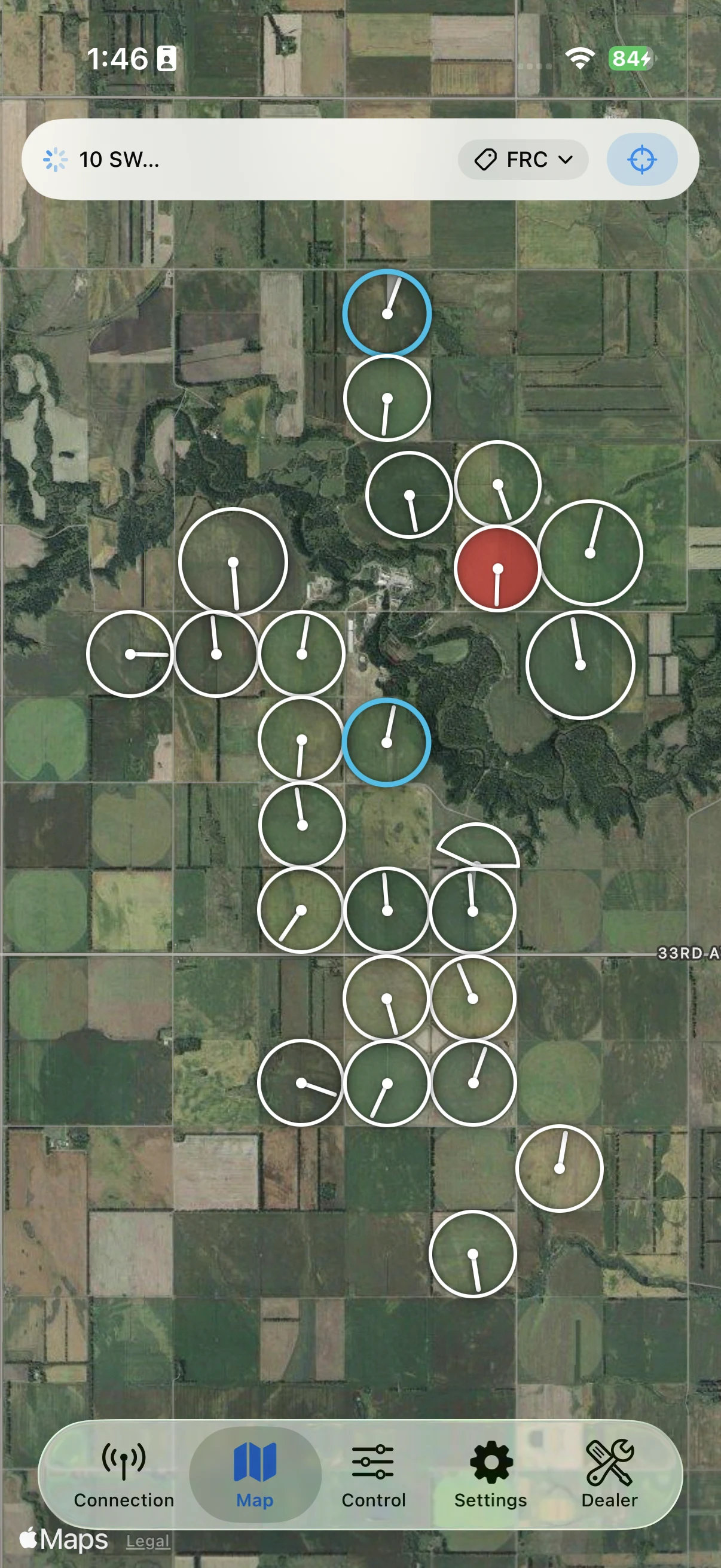
What the status bar tells you
The floating bar at the top of the map shows the current polling state. In the screenshot above the status reads "10 SW…" with a spinner — the app is currently fetching live data for the pivot named "10 SW".
| What you see | What it means |
|---|---|
No pivots with a warning icon |
You haven't added any pivots yet, or your farm filter hides them all. Open the Connection tab and tap Add Pivot. |
| Spinner + a pivot name | The app is fetching live data from that pivot right now. It will cycle through the others. |
Refreshing all pivots… (orange) |
The app just woke up and is grabbing fresh data from every pivot in parallel. Lasts a few seconds. |
| Green ✓ with a number | All pivots are up to date. The number is how many are visible. |
Reading a pivot on the map
Each pivot you own — or that's been shared with you — shows up at its real-world location. The screenshot above shows about two dozen pivots across a single farm. Three things to notice at a glance:
- Center-pivot machines appear as a small circular gauge. The needle inside the gauge shows the pivot's current angle around its center.
- Lateral-move machines appear as a rectangle along their travel path (A → B). The dark line across the rectangle is the machine itself — cart and pipe — drawn at its current position. On Siemens machines the app works that position out from the machine's own GPS automatically, so the line is live even though the PLC doesn't report a position of its own.
Each gauge has two color layers — the outer ring tells you the network / polling state, and the interior fill tells you the operational state.
Outer ring (how the app is talking to the pivot):
| Ring | Means |
|---|---|
| White (solid, thin) | Idle. The app polled it recently and everything is fine. |
| Cyan (solid, thicker) | The app is talking to this pivot right now, or you're actively connected to it from the Control tab. |
| Orange (solid, thicker) | Part of the wake-up "refresh everything" wave. Brief. |
| Red dashed | The last attempt to reach this pivot timed out. The pivot is unreachable. Check power and signal. |
| Gray dashed | You took this pivot out of the polling rotation in the Pivots tab. |
Interior fill (what the pivot is doing):
| Fill | Means |
|---|---|
| Empty / transparent | Powered off, nothing running. |
| Yellow | Power is on, but pump and chemicals are off. |
| Blue | Pump is running — pivot is wet (delivering water). |
| Light blue | Power is on, but the PLC reports low pressure. |
| Green | Chemigation is running. |
| Red | Safety alarm. Something needs your attention. Tap the pivot to open Control and read the alarm message. |
In the screenshot above: the cyan-ringed pivot near the top is the one the app is currently polling. The red-filled pivot in the middle of the cluster is showing a safety alarm.
Tip: zoom out for a "whole farm at a glance" view; zoom in to see the individual gauge for one machine.
Quick glance: touch and hold a pivot or lateral marker to see its latest pressure, speed in percent and inches, GPS satellite count, and Status time remaining without leaving the Map. When Chem is running, the same card shows fertilizer gallons remaining beside the Status estimate. Choose Open Control from the menu to connect and operate it.
Field Replay
On the Pivots tab, press and hold the i beside Status for five seconds to reveal Replay on this device. Then tap the purple Replay button above the Map tab bar to replay stored Data Log history for the pivots currently visible on the map. Replay is read-only: it pauses live map polling and never sends a command to a PLC.
- Replay first reads the watcher-created date index from iCloud. Tap Select range, choose a Start and End date/time, then tap Download. Replay downloads every CloudKit day touched by that range and keeps only the samples between the selected times.
- Playback and scrubbing become available after the selected range finishes downloading. Replay does not substitute device-local history for CloudKit data.
- Tap Play to compress the selected range into 30 seconds, or drag the timeline to inspect an exact time.
- A purple outer ring means the gauge is showing recorded history rather than live data.
- Blue trails show sectors watered with the pump on. Green trails show chemical application. Large telemetry gaps are left blank rather than guessed.
- Lateral machines move their cart/pipe line along the recorded path.
Tap × to close Replay and resume normal live polling.
Filtering by farm
If you have pivots on more than one farm, a farm-name menu appears in the middle of the status bar. Tap it to show only one farm's pivots, or choose All farms to see everything.
If you only have one farm name set up, the menu is hidden — there's nothing to filter.
Recentering the map
The compass-target icon (⌖) on the right end of the status bar snaps the map back so every visible pivot fits on screen with some padding. Useful after you've panned far away or after the farm filter changes.
Tap a pivot to take control
Tap any pivot's gauge or rectangle on the map and the app will:
- Connect to that pivot.
- Switch you over to the Control tab.
From there, you can stop it, change direction, change depth, or do anything else you'd normally do on the Control page.
4. Connecting to a Pivot
The Connection tab is where you tell the app which pivot you want to talk to. It's also where pivots show up that your dealer (or someone else) has shared with you over iCloud.
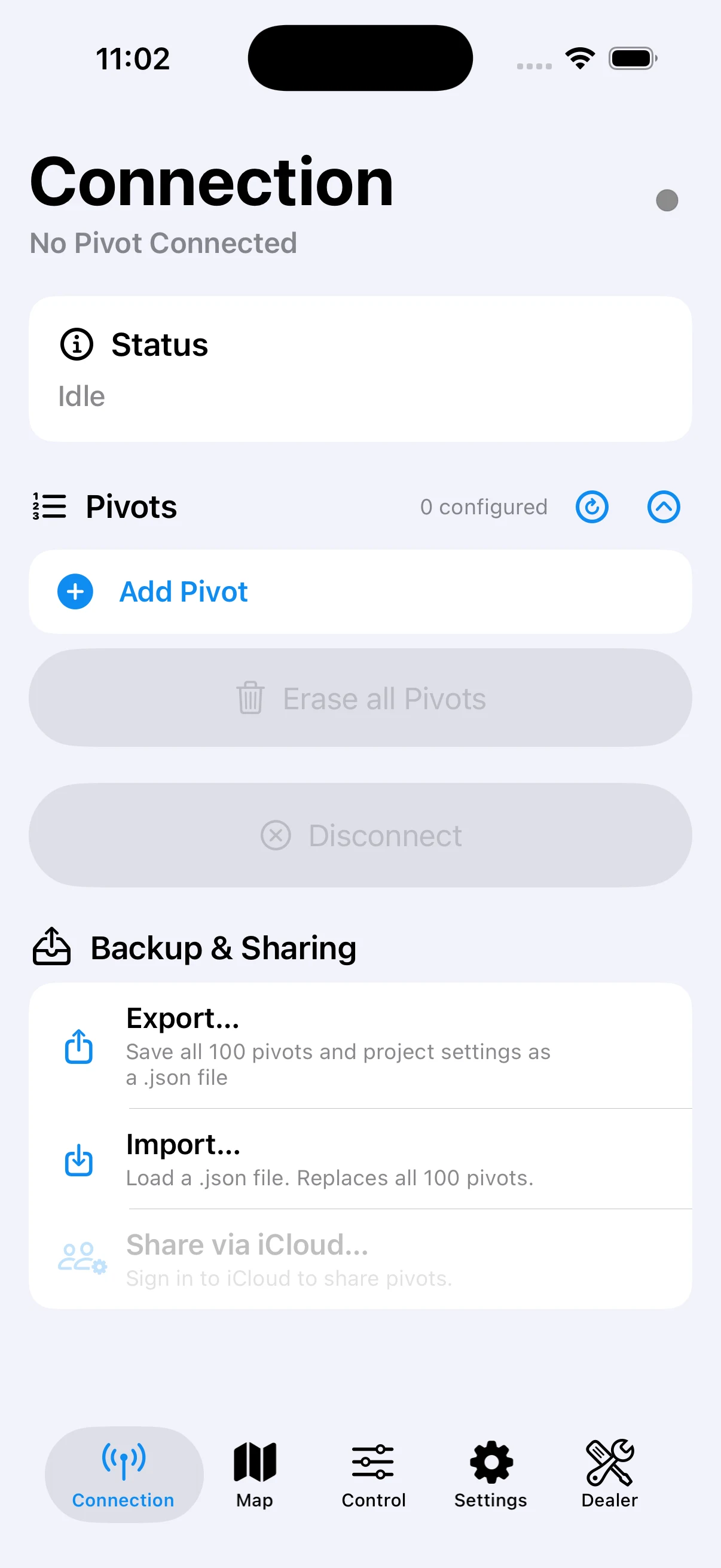
Status card
The white card near the top shows the current connection state at a glance:
- Idle — not connected to any pivot.
- A pivot name and "Connected" — you're talking to that pivot now;
the Control tab will operate on it. The card also shows the PLC's
IP / port and two small horizontal bars labelled cps and rps:
- cps (cycles per second) — how often the app is completing a full polling cycle.
- rps (reads per second) — how many tag reads the app is doing each second. A healthy connection sits around ~1 cps on a default poll rate. A bar that drops to zero is the same signal as a dropped connection.
- A spinner — the app is mid-handshake.
- An error message — the app couldn't reach the pivot. Check power and signal at the machine.
Notifications
Just below the status card is the Notifications card, where you turn push alerts on or off for your pivots. Because alerts also need a watcher to be running, that whole topic — the switches, Server mode, and watching more than one farm — has its own section: see Section 10.
Pivots list
The Pivots section lists every pivot you've configured, plus every pivot that's been shared with you. The count badge ("0 configured", "4 configured", etc.) is on the right.
- Tap a pivot to connect to it. The status card flips to "Connected" and the Control tab unlocks.
- The 🔄 refresh button next to the heading pulls the latest pivot list down from iCloud — useful if your dealer just shared a new pivot with you and it hasn't appeared yet.
- The chevron next to the refresh button collapses the list when it gets long.
- The pencil on a pivot row opens its settings — name, farm, address, and notifications — plus two setup helpers: Test Connection, a step-by-step check that tells you in plain language why a pivot won't connect (see Section 9), and Find PLCs on Network…, which scans the local network for pivot controllers and fills in the address of the one you pick.
If you have 0 configured, tap + Add Pivot to open a new pivot slot. For most operators this is a one-time, dealer-driven step — you shouldn't need to add pivots from scratch in normal use.
Ripple Power — switch a whole farm on or off
Some power companies run ripple control: when the grid is tight they signal irrigation loads to shut down, and expect them back on once the signal clears. The Ripple Power card (below the Pivots list) groups every in-service pivot — yours and ones shared with you — by farm, because each farm is usually on its own power company. When a ripple hits one farm, you answer it in two taps instead of connecting to each pivot in turn.
Each farm row shows its pivot count and two buttons:
- Off dials every in-service pivot on that farm at the same time, writes the power switch off, and reports the result per pivot — so you know exactly which machines didn't get the message and need a drive-out. (Pivots that are already off are left alone and reported as "already off.")
- On does the same in reverse — it powers on everything on the farm. Once a ripple clears, Restore (below) is usually the button you want instead.
Both buttons ask you to confirm. Read the Off warning every time: shutting a pivot off closes the valve at the machine. If a pump is still pushing water into that closed line, the pressure has nowhere to go and can burst underground pipe. Pumps off first, then pivots.
While the wave runs, the card shows "3 of 12 pivots done." When it finishes you get a summary, and any pivot that couldn't be switched is listed in red with the reason (no response, could not connect, and so on). Pivots marked out of service are skipped, and pivots with no farm assigned get their own row at the bottom.
Restore — bring back only what was running
Off remembers which pivots it actually switched off. After the wave, the farm row gains a line like "4 were on at shutoff · 2:14 PM" with a Restore button. Restore powers on exactly those machines — never a pivot you had deliberately left parked — so when the ripple clears, Restore puts the farm back the way it was, while On starts everything.
A few things Restore handles for you:
- The list is saved on the device, so it's still there hours later even if the app was closed in between.
- Pressing Off again mid-ripple won't erase it — a precautionary second press changes nothing, and a pivot someone started by hand mid-ripple joins the list when you shut it off again.
- If some machines fail to restore, the line shrinks to just the stragglers so you can tap Restore again for them.
- Pressing the full On clears the list (everything is on anyway).
Restore's memory lives on the device that pressed Off. If the shutoff was done from a different phone, this one won't offer Restore for it.
The card only appears when you have at least one in-service pivot. Shared pivots you've switched off on this device are skipped too.
Disconnect
The grey ⊘ Disconnect button drops the current connection but leaves the pivot in your list. Use it when you're done operating one pivot and want to keep the app idle. (Tapping a different pivot also disconnects the previous one automatically — you don't have to disconnect first.)
Alarms — the Alarm History card
Below Disconnect, the Alarm History card opens the running record of every alarm the watcher has reported for your farms — safety, power, low pressure, pump, and chem — newest first. A push notification disappears when you dismiss it; this list doesn't, so "did the safety trip overnight?" always has an answer.
Each alarm shows an Acknowledge button until someone in the operation acknowledges it (from this list, or straight from the notification — see Section 10). Once acknowledged, everyone sees the green Acked badge, so a crew knows at a glance which alarms have already been handled.
The card only appears when your farm is set up with the notification server — no watcher setup, no history to show.
Backup & Sharing
The bottom card has five optional actions:
| Button | What it does |
|---|---|
| Export… | Saves all your pivots and settings to a .json file. Send the file to yourself or to your dealer as a backup. |
| Import… | Replaces all your pivots with the contents of a .json file. This wipes your existing list — keep an Export handy first. |
| Share via iCloud… | Lets you share one or more of your pivots with another iCloud user (a co-worker, a dealer). Requires you to be signed in to iCloud. |
| Manage Shared Access… | Opens a list of every iCloud user you've shared your pivots with. Shows each person's name, their permission level (Read or Read & Write), whether they've accepted the invite yet, and a trash button to revoke access. |
| 🗑 Erase all Pivots | Deletes every pivot configuration. Cannot be undone unless you have an Export. |
Pull-to-refresh: swipe down anywhere on the Connection screen to force an iCloud sync. Same effect as tapping the refresh button by the Pivots heading.
Cloud Snapshots
Just below Backup & Sharing is the Cloud Snapshots section. A snapshot
is a named copy of your entire pivot configuration, stored in your
iCloud account. It's the same idea as Export, but instead of juggling
.json files you give each backup a name and the app keeps them for you.
| Action | What it does |
|---|---|
| Save to iCloud… | Names the current configuration and stores it as a snapshot. The app suggests a name (today's date); change it to whatever you like. |
| Load | Restores a snapshot, replacing your current pivot list. You're asked to confirm first — loading replaces all current pivots and can't be undone. (Your pivots' map coordinates are preserved.) |
| 🗑 (trash) | Deletes that snapshot from iCloud. |
Saved snapshots are listed newest-first, each showing its name and the date and time it was saved.
Snapshots vs. Export: use a Snapshot for quick, named restore points you keep inside the app (e.g. "before re-doing the north farm"). Use Export when you need an actual file to email to your dealer or stash outside the app. This section only appears when the app is running in iCloud mode.
What the colored dot on each pivot row means
Each pivot in your list has a small status LED on the left side:
| LED | Meaning |
|---|---|
| Gray | The pivot doesn't have an IP / port yet. Tap the pencil to finish setting it up. |
| Pulsing blue | The app added the pivot to iCloud and is trying to fetch its settings from the PLC for the first time. Once that's done, the LED turns green. |
| Green | The pivot's settings are mirrored to iCloud. You'll find it on the Map page with the right coordinates, and the Manage Shared Access + Restore to PLC actions are available. |
If the LED stays blue: the app couldn't reach the PLC on its auto-fetch attempt. It'll retry next time you launch the app, or next time the pivot syncs from another device. You can also force a retry by tapping the pivot to connect manually — the snapshot path runs after the first successful poll either way.
Integrations — Pump Project
Open the gear on the Pivots tab to find the Integrations section with a single Pump Project switch. Turn it on if you run a pump station through the separate HMI Viewer app and want to reach it without leaving Rite Control PLC.
When you flip it on, a box appears for the HMI project name — type the
name your dealer gave you (for example Demo.hmipad). A new Pump tab
then appears on the Control page. See Section 8
for what it does.
The Pump Project setting is stored in your iCloud account, so it follows you to every device you sign in on.
Server mode (the watcher)
In the Pivots tab's gear menu, the Server section has a single switch that turns this device into the always-on watcher — the monitor that actually sends push notifications. See Section 10.
App version
At the bottom of the Pivots tab is a small grey line like v1.4 (build 71). That's the app version — handy to read out if you ever call your dealer for support.
5. The Control Page — Day-to-Day Operation
The Control tab is where you actually run the pivot. It only works when you're connected to a pivot (see Section 4) — otherwise the buttons are dimmed out.
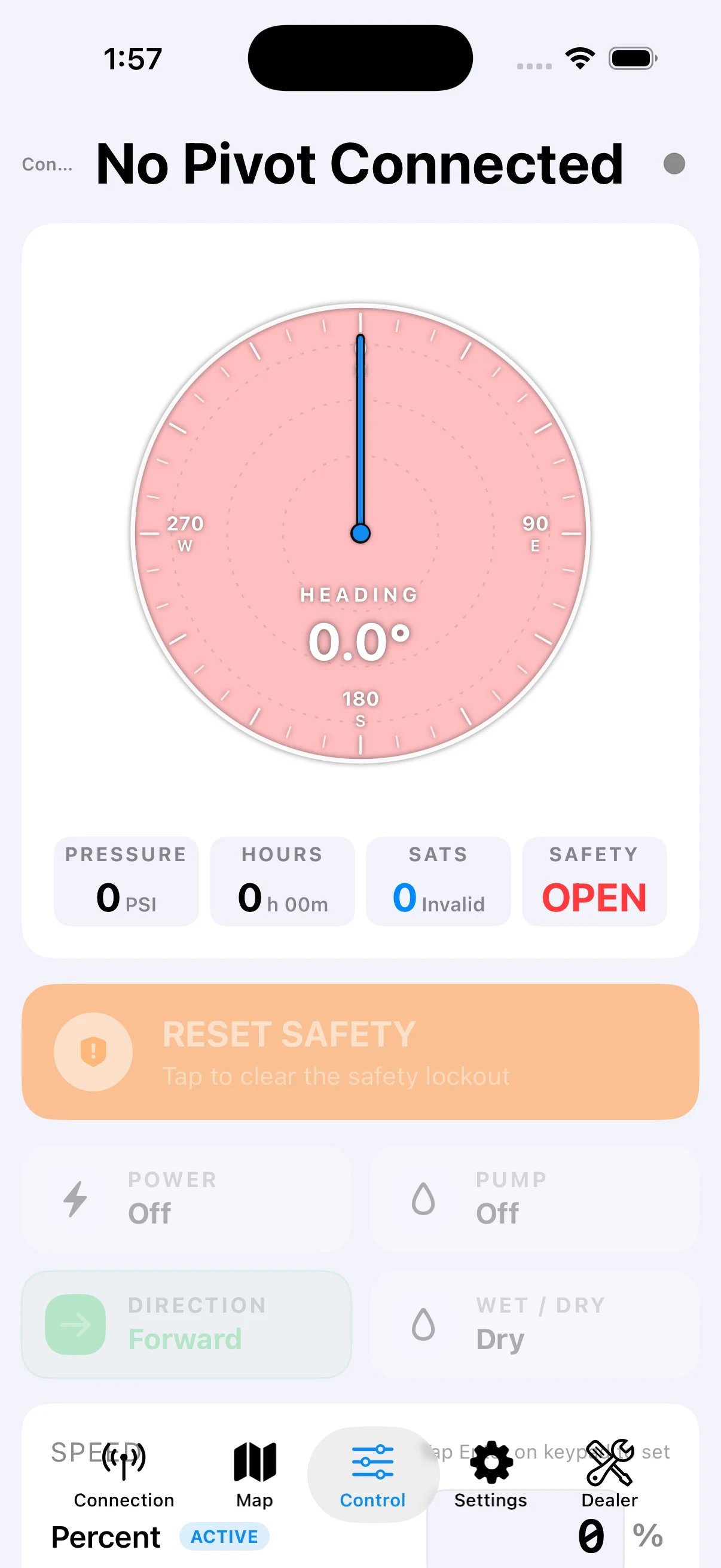
5.1 Reading the dashboard
The big card at the top is your at-a-glance dashboard.
The circular gauge in the middle shows:
- The pivot's current heading (the needle).
- A faint sweep showing how far it's travelled since you last set a Status Marker.
- The colored ring around the edge — same color rules as the Map gauges (Section 3).
- A pin where Park is set, an arrow where the Status Marker is, and shaded sectors where Barriers limit the pivot's travel.
- When the PLC reports VRI ON, the saved prescription appears as color-coded pie sectors over the satellite image. Blue sectors apply less than the base rate, green is the base rate, and orange applies more.
If the machine's physical Remote switch is off, an orange warning appears below the Control header. The app can still read the PLC, but the machine will not accept remote commands until that switch is turned on.
Below the gauge are four metric tiles:
| Tile | What it shows |
|---|---|
| PSI | Live PSI from the pressure transducer at the pivot point. When Power is on AND Wet/Dry is set to Wet, a small LED dot appears next to the caption: solid green means the PLC reports pressure has come up; pulsing orange means the system is still waiting for pressure to build. The LED is hidden during dry rotations so it can't read as a stale alarm. |
| HOURS | Total run hours on the machine (or this season's hours, depending on how your dealer configured the hour meter). |
| SATS | GPS satellite count from the pivot's receiver. Higher = more reliable position. |
| SAFETY | OK (green) — safety circuit is closed. OPEN (red) — the safety circuit is broken; the pivot will not run until you reset it. |
If the orange LED keeps pulsing for more than a minute after you turn the pump on: the pressure isn't building. Walk the machine. Check the pump prime, the inlet, and the relief / drain valves. If in doubt, call your dealer.
5.2 Safety lockout
If the SAFETY tile reads OPEN, a large orange RESET SAFETY banner appears just above the main controls.
Tap it once to clear the lockout. The pivot's PLC will re-arm its safety circuit, and the SAFETY tile should flip back to OK on the next refresh.
If the SAFETY tile flips back to OPEN within a few seconds, something in the field is still tripped (cart misalignment, low pressure, end stop, etc.). Walk the machine before retrying — don't keep hammering the reset button.
5.3 The four big buttons
The 2×2 grid of large buttons is your day-to-day driving:
| Button | What it does |
|---|---|
| POWER | Master on/off for the pivot. Off here = nothing else runs. |
| PUMP | Turns the water pump on or off. With WET/DRY set to Wet and Pump on, the pivot is applying water. |
| DIRECTION | Toggles Forward (green ➡) and Reverse (red ⬅). Tap to flip. |
| WET/DRY | Wet = When set to Wet, the pivot will not move until it sees water pressure, either from the Pressure switch or it's reached the Pressure X-Ducer Pressure Setpoint'. Dry = Pivot will run even if there is no water pressure. |
Each button taps once to toggle and gives haptic feedback. There is no hold-to-confirm — make sure you mean it.
5.4 Speed — Percent or Inches
Speed sets how fast the pivot moves, which in turn sets how much water it applies per pass (inches of depth).
There are two ways to enter speed:
- Percent (%) — a raw motor duty cycle, 0–100 %. Higher = faster rotation = less water per pass.
- Inches (") — the depth of water the pivot will apply this pass. Inches is the way most operators think; the PLC converts it to percent using the "Inches at 100 %" calibration your dealer set in the Dealer tab.
Whichever mode is currently active on the PLC shows an ACTIVE badge next to its label. Tap into either field and the custom keypad appears. Type the value, then tap ENTER on the keypad to send it. CANCEL discards the change and restores whatever was there before.
Tip: you can switch which mode is active just by entering a value into the other one. The PLC reports the conversion back so the other row updates to match — useful for spot-checking the dealer's calibration.
Just below the two speed rows, a small clock line reads "1 revolution at current speed: …". It's a live estimate of how long one full circle takes at whatever speed is set right now — change the speed and the time updates. It needs the dealer's Time per rev calibration to be set, and it's hidden for lateral-move machines.
5.5 Positions
The POSITIONS card lists the position-based features. Each row has a toggle on the right and (where applicable) an inline value field.
- Park — when on, the pivot stops itself at the angle in the field. Useful for parking out of an access lane overnight. Toggle off to run past the park angle freely.
- Status Marker — a "you are here" anchor. The pivot's status sweep on the gauge starts from this angle. Set it to wherever you want "one full pass" to start counting from.
ETA on Park and Status Marker: when the pivot is moving, a small ETA HH:MM appears under each of these two rows — the estimated time for the pivot to reach that angle, traveling in its current direction at its current speed. It disappears when the pivot is stopped, when the Time per rev calibration isn't set, and on lateral-move machines.
- Program — when on, the pivot will (a) turn Chem off and (b) change to the speed you specify, once it reaches the program angle. Use it for a one-shot scheduled change-over mid-pass. When Program is on, two extra sliders appear: program angle and the speed to switch to.
- The dedicated Schedule section opens the future-start setup. Choose a date and time, a 5–30 minute late-start window, direction, speed, Wet/Dry, Pump, and VRI. The request is sent through iCloud to the farm's foreground watcher. At the requested time the watcher connects to the PLC, checks that Remote is on and Safety is OK, writes the launch profile, turns Power on last, and verifies the live readback. The row says Armed only while its watcher heartbeat is fresh; Watcher offline — will not start means the request is saved but cannot execute. You can cancel an armed request or use Start Now to send it to the watcher immediately. If a Power write has an uncertain result, the watcher does not retry blindly—it records a failure asking you to check the pivot.
- Barrier — when on, the pivot won't travel past the forward or reverse angles set in the Dealer tab. The Barrier row shows the current forward (F) and reverse (R) angles in degrees. Use it to keep the machine out of fence lines, tree rows, or roads.
5.6 Pressure Setpoint
If your pivot has a pressure transducer, the Pressure X-Ducer card shows whether pressure-based control is on, the current PSI setpoint, and (when on) a slider to adjust it.
You typically want this on. With it on, the pivot will hold the pump at whatever PSI you set — useful for making sure your sprinklers see consistent pressure regardless of how far out on the arc you are.
If you don't have a pressure transducer wired up, leave this off — the PSI reading will just be 0 and the setpoint does nothing.
5.7 Outputs
The OUTPUTS card has five generic auxiliary switches:
| Output | Typical use |
|---|---|
| Chem Pump | Chemigation pump — adds the chemical injector to the water flow. Only on when Program isn't about to turn it off (see Program above). |
| Aux 1 | User-defined. Your dealer can wire this to anything (driveway lights, a fan, a relay). |
| Aux 2 | Same — second user-defined auxiliary output. |
| End Gun A | Toggles the primary end gun (the boost sprinkler at the outer tower) on or off. Its automatic Start/Stop angles are configured in the Settings tab. |
| End Gun B | Same as End Gun A but for a secondary end gun. |
When Chem Pump is on, enter the total Gallons of Fertilizer to Apply for one full revolution ending at the Status position. The app shows the estimated gallons remaining from the pivot's live heading and direction. For example, with 300 gallons planned and half a revolution left before Status, it shows 150 gallons remaining. The plan is stored with the pivot in iCloud and shared with authorized users.
Tip: if End Gun A or B refuses to turn on, the issue is usually that the pivot is currently outside the on-angle ranges your dealer configured. Check on the Map gauge or the Control gauge — the green arc at the rim shows where the end gun is allowed to fire.
6. Settings
The Settings tab is per-pivot calibration — the numbers the PLC needs to know to translate your inputs (depth, speed, position) into the right motor commands. These are almost all set once by your dealer at install and don't need ongoing attention.
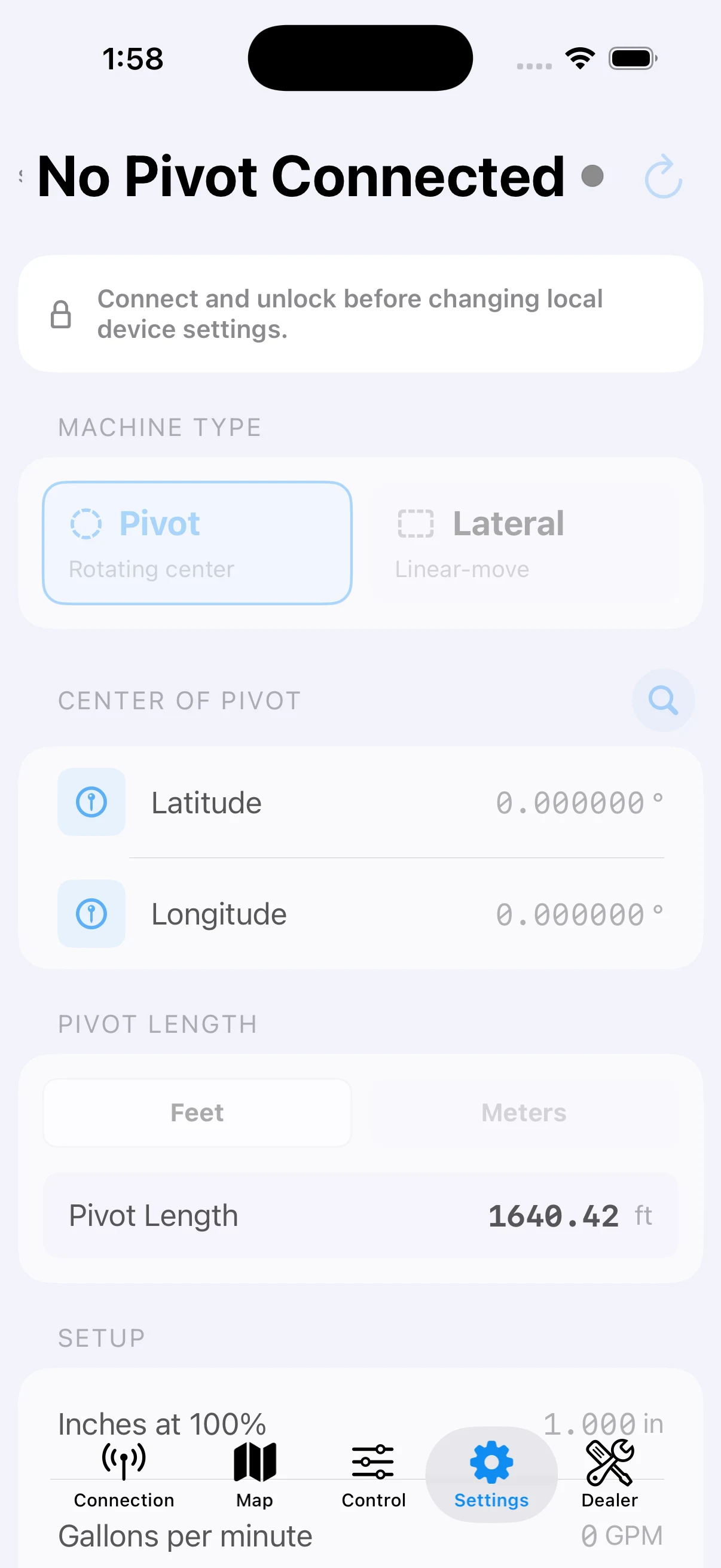
The page is divided into labeled sections. Here's what each one is for, so you can recognize where a dealer might ask you to look:
| Section | Purpose |
|---|---|
| CENTER OF PIVOT | Lat / lon of the pivot's center point. Drives where the pivot shows up on the Map and on the dashboard satellite background. |
| SETUP | The three core calibration values: Inches at 100 % (water depth at full speed), Gallons per minute (pump capacity), Time per rev (how long a full circle takes at 100 %). |
| PRESSURE TRANSDUCER SCALING | Voltage-range picker + the Pressure Min / Max PSI values that map the transducer signal to PSI on the dashboard. |
| BARRIER | Forward and reverse angles for the optional travel barrier — see Section 5.5. |
| END GUN SETTINGS | Nine Start/Stop angle pairs for End Gun A and, when supported, End Gun B. Named presets are stored with the pivot in iCloud. |
| VRI Setup | Imports and previews a sector prescription, uploads it to the PLC, and controls the PLC's VRI enable bit. |
| PIVOT LENGTH | The pivot's radius in feet (or meters). Drives the dashboard's drawn circle and the gauge geometry. |
| MACHINE TYPE | Center pivot or lateral move. Wholesale changes the gauge from circular to rectangular. |
| LATERAL LENGTH / PIPE SIDE | Only relevant for lateral-move machines — defines the A → B travel path and which side of the rectangle the lateral pipe sits on. |
Should I change anything here?
Most calibration values: almost never. A wrong center, depth calibration, pressure scale, or barrier can make the dashboard inaccurate or keep the pivot from operating correctly. Those values should normally be changed only with your dealer.
End Gun presets are the seasonal exception. Farmers can select an approved preset, create a named seasonal table, or use an All Off preset to conserve water. If you are unsure which angles are safe for a field, ask your dealer before changing them.
The number entry fields on this page use the same on-screen keypad as the Control page — tap a value, type, then ENTER to commit or CANCEL to discard.
End Gun presets
Each supported end gun has nine Start / Stop pairs. A 0 / 0 pair is
disabled. The End Gun Preset menu keeps reusable, farmer-named tables with
the pivot in iCloud; there are no built-in presets. To make an All Off
preset, set all nine pairs to 0 / 0 for every end gun shown, then tap Save
as New and give it a name.
Choosing a named preset prefills every supported end-gun table and previews its arcs without changing the PLC. For an untouched selection, tap Apply Preset to PLC to send End Gun A and, where supported, End Gun B together. The app first reads the current PLC table, writes the values that differ, then reads every affected value back. It reports success only after the complete table is verified. A live PLC connection is required; saving a preset in iCloud by itself does not apply it to the machine.
For normal edits, change a value and tap ENTER. The app validates and sends the selected gun's complete nine-row table immediately, while changing only the PLC registers that differ. If a named preset is selected, a successful PLC write also updates that gun's table in the iCloud preset; the other gun is left unchanged. With no preset selected, ENTER changes only the PLC. If the iCloud update fails after a successful PLC write, the app warns you, but the PLC change remains in effect.
Editing a just-selected preset switches to this normal ENTER flow and hides the separate Apply button; CANCEL restores the pending preset values. Tap Save as New to store the displayed tables in iCloud without changing the PLC. Use Manage to rename or delete saved presets.
A preset on a Siemens center pivot includes both End Gun A and B; Allen-Bradley and lateral machines use End Gun A only. Active on PLC names the saved preset that matches the live table. If no saved table matches, Settings shows Custom PLC Settings.
VRI prescription setup and upload
Below End Gun Settings, tap VRI Setup, then Import VRI CSV. The
file must include Start, Stop, and Application Depth columns
and cover 0–360° without gaps or overlaps. The preview multiplies the
connected pivot's current speed by each sector's Application Depth and
colors the pie by the resulting speed. Tap Download Sample File for
a ready-to-edit eight-sector CSV showing the required format. Application
Depth is a multiplier: 0.75 means 75% of the base application and 1.25
means 125%.
Siemens prescriptions are limited to 30 sectors with whole-degree Start and Stop positions. Allen-Bradley prescriptions may contain up to 60 sectors; the app converts them into the PLC's sixty fixed 6° slices.
To install a prescription, put the machine in Remote, turn VRI Program off, and tap Upload Prescription to PLC. Uploading replaces the complete PLC prescription and clears unused Siemens records. Turn VRI Program back on after the upload finishes. When the PLC reports VRI on, the same colored pie appears over the satellite gauge on the Control page.
7. The Data Log Tab
Allen-Bradley only. The Log tab only appears while you're connected to an Allen-Bradley (MicroLogix) pivot. If your machine is a Siemens pivot, you won't see this tab — that's expected, not a fault.
Allen-Bradley pivots keep a running data log inside the PLC — a time-stamped record of where the machine was and which switches were on (pump, power, direction, end gun, chem). The Log tab pulls that record onto your phone, saves it to iCloud, and charts it, so you can see what a pivot actually did over the last day, week, or season.
Downloading the log
Tap Download Data Log. The app reads the MicroLogix log, saves it on this device, and syncs it to iCloud so it's available on your other devices too. A status line under the button reports progress and how many records came down.
⚠️ The download empties the PLC's log. Reading the data log is destructive — each download pulls the records off the PLC and clears its queue (that's normal; it's how the PLC frees room for new records). The practical upshot: a given stretch of history downloads only once. Once it's on your phone and in iCloud it's safe and permanent; it just won't come down from the PLC a second time. So download regularly if you want a complete season.
If you're working on a shared pivot that someone else owns, you'll only see the download button if the owner enabled data-log downloads for collaborators and gave you Read & Write access. Otherwise the tab shows View only — you can still browse whatever history has already been downloaded, you just can't pull new records yourself.
Reading the charts
Below the download card, pick a date range — the From / To date pickers, or the 7d / 30d / Season / All preset buttons. A line under the pickers tells you how many days actually have data and the span they cover. The app then shows:
- Summary — the record count, the min–max position range, and total pump-on hours for the selected range.
- Applied Water — an estimate of how much water went on the field over the range: total gallons, acre-inches (and acre-feet), and the average depth. It's worked out from the pump-on hours plus the pivot's GPM and length (set on the Settings tab, normally filled in automatically by the PLC), with a bit of extra wetted area added for end-gun-on time. Treat it as a solid ballpark for planning — not a billing-grade meter reading. If GPM or length aren't set yet, this card tells you so instead of showing numbers.
- Pivot Position — a chart of the pivot's angle (0–360°) over time, with light-blue shading wherever the pump was running.
- Switches — a timeline with one lane each for Pump, Power, Forward, End Gun, and Chem, so you can see at a glance when each was on.
Tip: because the history lives in iCloud, you can pull up and review a pivot's logs from your office iPad even when you're nowhere near the machine — as long as it's been downloaded at least once.
8. Pump Controls
Open Pump Controls is a shortcut on the Control page. If you run a pump station through the separate HMI Viewer app, it lets you jump straight into the matching project without searching for it again.
It only appears once you've turned the feature on:
- Open the Pivots tab, tap the gear, and find Integrations.
- Turn on Pump Project.
- Type the HMI project name your dealer gave you (for example
Demo.hmipad).
An Open Pump Controls row with a blue water-drop icon then appears near the top of the Control page. Tap it and the app hands off to HMI Viewer using the configured project name. You don't lose your place; iOS simply switches apps.
You need the HMI Viewer app installed. If it isn't, tapping the action shows a clear message instead of silently failing. Install HMI Viewer from the App Store first, or ask your dealer to set it up.
9. Alarms and Troubleshooting
The app doesn't have a long list of named alarms — instead, it surfaces a few clear signals and leaves diagnosis to you in the field. The four you'll actually run into:
Safety circuit open
What you see: the SAFETY tile on the Control dashboard reads
OPEN in red, and an orange RESET SAFETY banner appears just
above the main controls. The pivot's Map gauge turns red.
What it means: the pivot's safety circuit (typically the end-tower misalignment switch, low-pressure switch, or end stop) tripped. The PLC has stopped the machine.
What to do:
- Don't tap reset from your phone first. Walk the machine. Look for: a misaligned tower, a sunken wheel, low water pressure, a broken span cable, a tripped end stop.
- Fix whatever caused it.
- Tap RESET SAFETY in the app. The PLC re-arms; the SAFETY tile should flip to OK on the next refresh.
- If SAFETY trips again within a few seconds, stop. Something is still wrong out there — call your dealer.
Pivot unreachable (offline)
What you see: the pivot's gauge on the Map gets a red dashed outline. The status banner at the top of the Map shows a brief error when it tries to poll that pivot.
What it means: the app sent a request but the pivot's PLC didn't answer in time. Could be: pivot power off, modem/router down, weak cell signal, or a network configuration that was never set up.
What to do:
- Confirm the pivot has power at the panel.
- If the pivot has a cell modem, check the modem's status lights.
- Pull-to-refresh on the Map (swipe down) to force a fresh poll.
- Open the pivot's edit menu on the Pivots tab and run Test Connection. It checks your device's network, the pivot's address and port, and the PLC itself one step at a time, and says in plain language which link is broken — "the port number is likely wrong," "nothing answered at this address," or "a PLC answered but the pivot program isn't loaded." Reading that result to your dealer over the phone saves the first twenty minutes of the call.
- If it stays offline for more than a few minutes and the pivot's power is on, call your dealer.
App can't reach iCloud
What you see: a message at the bottom of the Pivots tab saying "Export failed", "Import failed", "Could not prepare share", or similar. New pivots that someone shared with you don't appear.
What it means: the device isn't talking to iCloud right now.
What to do:
- Open the iPhone's Settings → [your name] → iCloud and make sure you're signed in.
- Make sure the device has internet (Wi-Fi or cellular).
- Open the Pivots tab and pull down to refresh.
- If the message persists, sign out of iCloud and back in.
Pivots shared with you never disappear over a bad connection. The app keeps its last good copy of every shared farm until the owner actually revokes your access. If shared pivots are gone from your list, that's the owner's doing — not a sync problem to troubleshoot.
A button is dimmed and won't tap
What you see: the controls on the Control or Settings tab are greyed out and unresponsive.
What it means: you're not currently connected to a pivot, or the app is still mid-handshake.
What to do: open the Connection tab. If the status card reads "Idle", tap a pivot in the list. If it reads a pivot name with a spinner, wait a few seconds for the handshake to finish.
When in doubt — call your dealer
The app intentionally has very few "scary" alarm screens. If the pivot behaves in a way that doesn't fit any of the four cases above — the gauge needle is parked in a strange place, depth is way off, end guns won't fire — that's a dealer call, not an app problem. They can pull diagnostic logs from the PLC that the app doesn't surface directly.
10. Notifications and the Watcher
The app can send a push notification to your phone the moment a pivot trips an alarm — even when the app is closed or the phone is in your pocket. The alarms it can push are:
- Safety — the safety circuit opened (the pivot stopped itself).
- Power — power turned on or off.
- Low Pressure — the pivot is running but pressure dropped below where it should be.
- Pump — the pump switched on or off while the pivot was running.
- Chem — chemigation switched on or off while the pivot was running.
(Pump and Chem alerts only fire for changes while the pivot is running — a power cut already pages you once as a Power alarm, not three times.)
There are two halves to this: choosing which alerts you want (on each device) and having a watcher running to actually catch the alarms and send them. You need both.
Choosing your alerts — the Notifications card
On the Connection tab, just below the status card, is the Notifications card. The big All Pivots switch is a master control for every pivot at once:
| Switch state | Meaning |
|---|---|
| On | Every pivot will send notifications. |
| Off | No pivot will send notifications. |
| Greyed out | Some pivots are on and some are off. Tap the switch to turn them all back on. |
Once All Pivots is on, five more switches appear — Safety, Power On/Off, Low Pressure, Pump On/Off, and Chem On/Off — so you can choose which kinds of alarm you want. They follow the same rule: change one pivot so the others disagree and the matching master switch greys out until you tap it again.
These choices are per device. Each phone or tablet picks its own alerts — turning Safety off here doesn't change anything on a co-worker's phone.
To fine-tune a single pivot — say you want Low Pressure alerts on just one machine — open that pivot's edit menu on the Pivots tab and use the Notifications section inside its settings.
Acknowledging alarms
When an alarm notification arrives, press and hold the banner and tap Acknowledge — that marks the alarm handled for the whole operation without even opening the app. The first person to acknowledge wins; everyone else sees the green Acked badge in Alarm History on the Pivots tab, so nobody drives out to a problem a co-worker already dealt with.
Two quiet courtesies built in: alarms you cause yourself — flipping Power, Pump, or Chem in the app — aren't pushed back to your own device, and repeats of the same alarm within a couple of minutes are collapsed so a flapping switch can't blow up your phone.
You still need a watcher
Here's the catch the card reminds you about: switching alerts on doesn't, by itself, deliver anything. A pivot's PLC doesn't call your phone — so some device has to be watching the pivots continuously, notice an alarm the instant it trips, and hand it off to be pushed out. That device is the watcher.
You get a watcher one of two ways:
- Run a device as the watcher yourself (Server mode, below) — usually a spare phone or tablet left plugged in at the office or shop.
- Have someone else watch your farm by importing the
.jsonyou export (Watched Farms, below).
If nobody is running a watcher for a farm, nobody gets alerts for it — no matter how the switches are set.
Server mode — running this device as the watcher
In the Pivots tab's gear menu, the Server section has one switch: Run this device as the watcher.
Turn it on and the app changes character: the tabs disappear in favor of a dedicated watcher screen that lists every watched pivot with a live "reading now / last read" status, continuously cycling through them and sending a push the moment a safety, power, low-pressure, pump, or chem alarm trips.
At the top of that screen, the Watcher health card keeps the device itself honest: how long it's been watching, whether it's plugged in (an orange ON BATTERY warning when it isn't), how hot it's running, and how fresh the last successful poll is.
Set it and leave it. Use a spare iPhone or iPad, plug it into power, and leave the app open — the app keeps the screen awake by itself while Server mode is on. But it can only watch while it's the app on screen: switch away or background it and the device warns you immediately (and keeps reminding you every few minutes) that monitoring is paused until you bring the app back.
While in Server mode, the gear icon on the Map opens Server Settings, where you can adjust how often it polls, manage Watched Farms (below), and turn Server mode back off to return to the normal app.
The watcher also executes Schedule Start requests. Keep the watcher app in the foreground with Server mode on; iOS suspends PLC polling when the app is backgrounded. The Schedule Start row on an operator device shows whether the watcher's iCloud heartbeat is fresh, and every device receives the success, failure, or expired result when iCloud syncs the final status.
Watched Farms — one watcher, several farms
A single watcher device can monitor more than one farm — handy if you look after several operations, or run the watcher for a neighbor.
To add a farm to a watcher:
- The farm's owner opens Connection → Export… and sends you the
.jsonfile (AirDrop, email, Messages, Files — anything). - On the watcher device, open Server Settings (gear on the Map) → Watched Farms → Import farm… and pick that file.
The watcher now monitors that farm's pivots alongside any of its own, and any alarm it catches is delivered to the people that farm's owner already set up — the watcher is only relaying. Each watched farm gets its own row where you can pause it, remove it, or read a status dot showing whether it's polling.
The watcher must be able to reach the pivots. It polls each farm's PLCs directly, so the watcher device has to be on a network that can see those pivots' addresses. If it can't, that farm's pivots show a "timed out" status instead of live data.
"Monitor offline" alerts
Because a silent watcher could be mistaken for "everything's fine," the system watches the watcher too. If a watcher stops checking in — its device was turned off, the app was closed, or it lost signal — everyone set up for that farm gets a "Pivot monitor offline" notification, so you know alerts are paused until it reconnects. Getting that message means one thing: go check on your watcher device. While the farm stays dark the reminder repeats every few hours, and the moment the watcher checks back in, everyone gets a "Pivot monitor back online" notice so you know coverage has resumed.
11. The Dealer Tab
The wrench-and-screwdriver icon at the far right of the tab bar is the Dealer tab. This is where the PLC-level behavior lives — things that depend on the pivot brand, the PLC family, or the field wiring rather than your day-to-day operation.
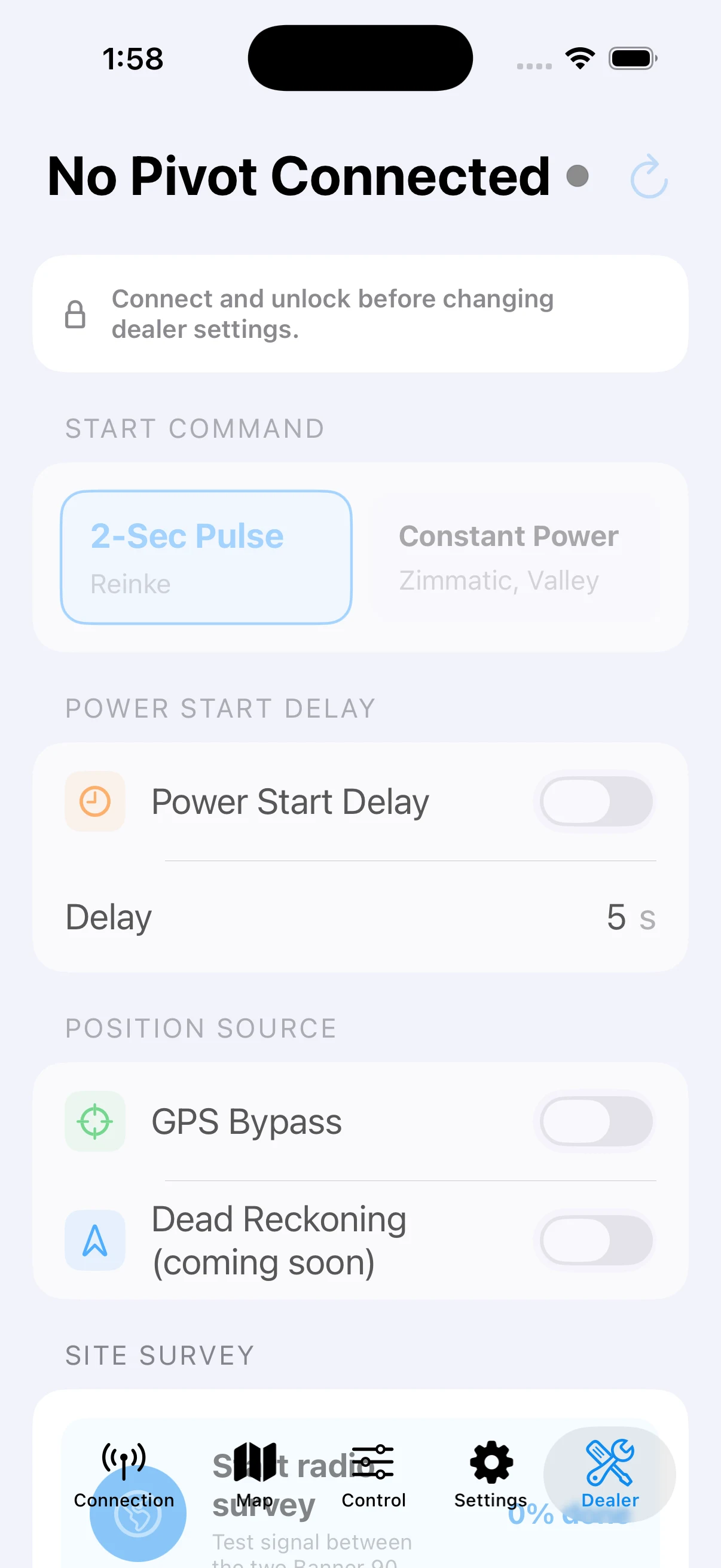
You almost never need to open this tab. A wrong value here can stop the pivot from starting at all, or cause it to behave unpredictably under load. The fields don't have the same guardrails as Control, because they're meant to be set once at install.
For reference only, here's what each section is for — so if your dealer asks "open the Dealer tab and check the Start Command setting," you know where to look:
| Section | What it configures |
|---|---|
| START COMMAND | How the PLC tells the pivot to start: 2-Sec Pulse (Reinke) or Constant Power (Zimmatic, Valley). Brand-specific — wrong choice = pivot won't start. |
| POWER START DELAY | Optional delay (in seconds) between power-on and starting motion. Some installations need it to let a soft-starter settle. |
| POSITION SOURCE | GPS Bypass controls whether the PLC may keep walking without GPS. The displayed position always comes directly from the PLC. |
| GPS SIGNAL LOG | Opens the GPS Dropout Map — a circular chart of where around the field the pivot's GPS/radio link drops out (the steel structure can shadow the radio at certain angles). Dark red wedges are the trouble spots; use it to decide where to re-aim or move an antenna. Data accumulates automatically from the watcher, so give it a rotation or two before judging. |
| SITE SURVEY | A one-button routine that runs the pivot through its full travel to capture the real extent. Used at install to verify geometry. |
| HOUR METER | Configures how the hour meter accumulates and whether the dashboard tile shows total or this-season hours. |
| REAL-TIME CLOCK | Syncs the PLC's internal clock with the phone. Mostly only matters for time-stamped logs. |
| NETWORK CONFIGURATION | Siemens-only. Hidden on Allen-Bradley installs. Configures the PLC's IP / netmask / gateway. |
Rule of thumb: if your pivot worked yesterday and it doesn't today, the Dealer tab is almost certainly not the right place to look. Walk the machine, check power, check water, then call your dealer if it's still down.
12. Glossary
A → B (path) The straight-line travel path of a lateral-move machine, from one end of the field (point A) to the other (point B). Defined in the Settings tab.
Acre-inch / Acre-foot The units the Data Log uses to total applied water. An acre-inch is enough water to cover one acre to a depth of one inch (about 27,150 gallons); an acre-foot is twelve acre-inches.
Alarm A condition that stops the pivot from running, or warns you that something needs attention. In this app the main alarm is the Safety Circuit open (red SAFETY tile + orange RESET banner).
Applied Water (estimate) The Data Log tab's calculation of how much water a pivot put on the field over a date range — gallons, acre-inches, and average depth — worked out from pump-on hours, the pivot's GPM, and its length. A planning estimate, not a metered total. See Section 7.
Barrier A virtual no-go zone configured by a forward and reverse angle. With the barrier toggle on, the pivot refuses to travel past these angles. Used to protect fence lines, roads, or tree rows.
Chemigation Injecting fertilizer or chemicals into the irrigation water. The Chem Pump output controls the injector pump.
Cloud Snapshot A named copy of your whole pivot configuration, stored in your iCloud account so you can restore it later from the Pivots tab. Like an Export, but kept inside the app instead of as a separate file. See Section 4.
Data Log A time-stamped history of a pivot's position and switch states, kept inside an Allen-Bradley (MicroLogix) PLC. The Log tab downloads it to your phone and iCloud and charts it. See Section 7.
Depth (inches per pass) How much water the pivot applies over one full revolution (or, for lateral, one A → B pass). Drives the Inches speed setpoint on the Control page.
End Gun A boost sprinkler at the outer tower that fires a longer-range jet to cover the corners or extend the wetted area. The Settings tab configures the angle ranges in which each end gun is allowed to fire.
GPM (Gallons per Minute) The pump's water flow rate. A calibration value, set in Settings. Also feeds the Data Log's Applied Water estimate.
HMI Viewer A separate app for running pump-station HMI projects. Enable Pump Project under Pivots → gear → Integrations, then use Open Pump Controls on the Control page to hand off to HMI Viewer. See Section 8.
Inches at 100 % The depth of water the pivot applies in one revolution when the speed is at 100 %. The PLC uses this to convert between the Percent and Inches speed setpoints. Set once at install by the dealer in Settings.
Lateral Move (machine) An irrigation machine that travels in a straight line (A → B) rather than rotating around a fixed center. Visually rendered as a rectangle on the map.
Park Position An angle at which the pivot will stop itself when the Park toggle is on. Often used to park the machine out of an access lane overnight.
Pivot A center-pivot irrigation machine — one that rotates around a fixed center point.
PLC (Programmable Logic Controller) The industrial controller in the pivot panel that the app talks to. Typically Allen-Bradley MicroLogix 1400 or Siemens S7-1200.
Polling Regularly asking each pivot's PLC for its current state. The app polls all visible pivots in a round-robin cycle. Polling state is shown by the ring color around each Map gauge.
Pressure Setpoint The PSI value the pivot will try to hold at the pump outlet when the pressure-transducer mode is on.
Pressure Transducer A sensor at the pivot point that converts water pressure into an electrical signal the PLC can read. The Settings tab maps that signal to PSI using the voltage range, pressure min, and pressure max values.
Program (Position Program) A one-shot scheduled change-over: when the pivot reaches a target angle, the PLC turns Chem off and switches to a different speed. Used for mid-pass setpoint changes without you needing to be at the machine.
Safety Circuit A series of switches on the pivot (tower misalignment, end stops, optional low-pressure switch) wired in series. If any one opens, the PLC stops the machine and flags SAFETY = OPEN.
Site Survey A dealer-tab routine that runs the pivot through its full travel and records the actual angular extents. Used at install to verify the configured pivot length and barrier angles match reality.
Status Marker A "you are here" reference angle. The dashboard gauge draws a sweep from the status marker to the current heading, so you can see at a glance how far the pivot has rotated since you set it.
Time per Rev How long it takes the pivot to complete one full revolution at 100 % speed. Used by the PLC to convert between Percent and Inches modes. Set once at install.
Wet / Dry A speed-card toggle. Wet = pump on, applying water. Dry = same pivot motion, pump held off. Use Dry to walk the machine into position or to test a pattern without watering.
This manual is for Rite Control PLC. Last revised: 2026-06-19 (app v1.4).